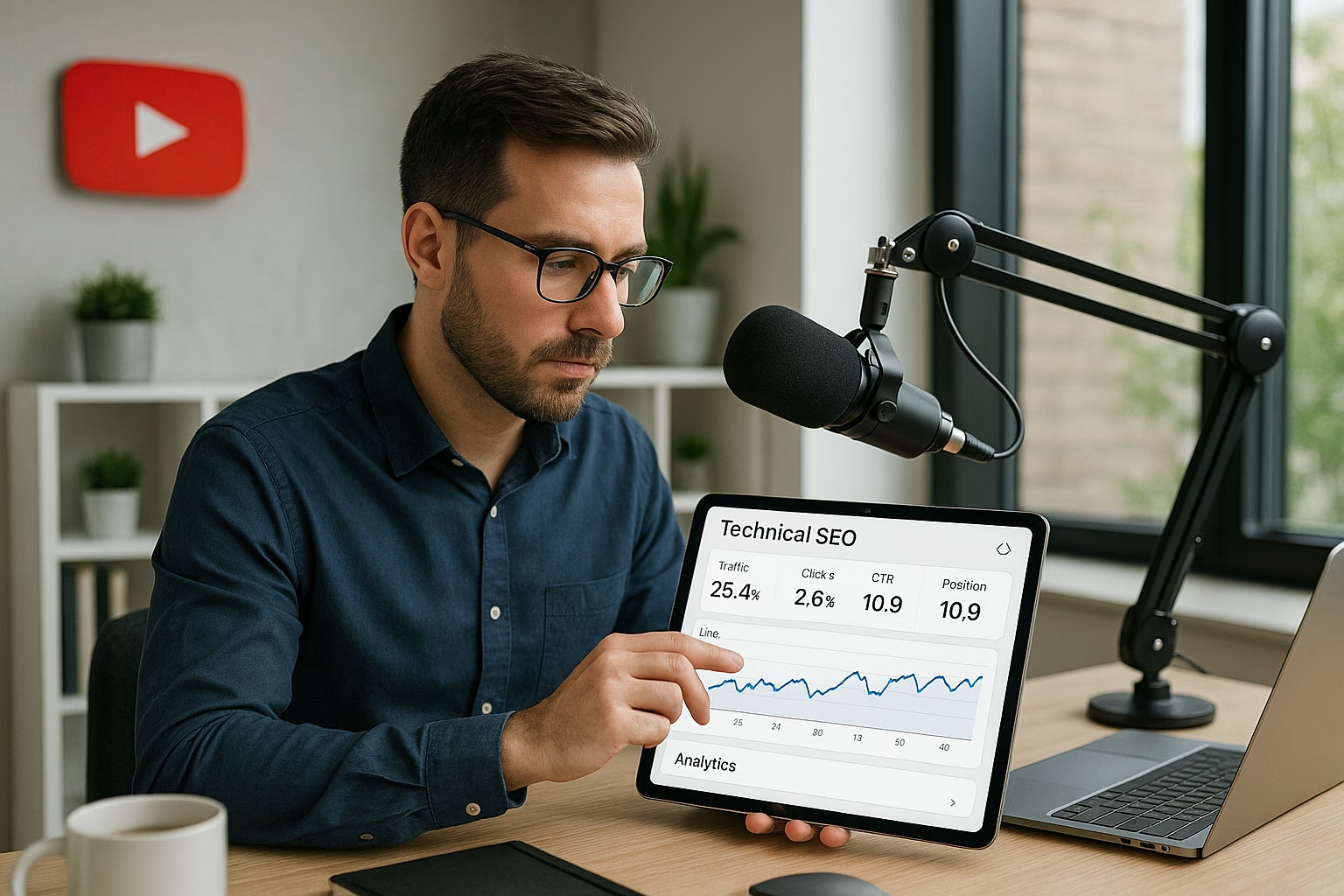
Master Youtube studio, studio setup essentials for YouTube Growth. Learn proven strategies to start growing your channel with step-by-step guidance for beginners.
Primetime Team
YouTube Growth Experts
February 4, 2026
PT2M
2736
Complete YouTube Studio setup tutorial Essentials
Quick answer: YouTube Studio is the dashboard creators use to manage channels, upload videos, optimize metadata, and read analytics. This step-by-step setup tutorial walks you through account basics, channel branding, upload defaults, SEO fields (titles, descriptions, tags), and simple analytics so you can publish optimized videos confidently.
Why YouTube Studio matters for creators
YouTube Studio centralizes everything-video uploads, thumbnails, monetization settings, comments, and analytics. For creators aged 16-40, learning the basics of studio setup saves time, improves discoverability, and reduces mistakes that cost views. This guide focuses on clear examples and actions you can complete in one session.
Quick CTA
Need help setting your upload defaults or designing thumbnails that convert? PrimeTime Media offers templates and one-on-one setup support tailored for creators aged 16-40. Learn how to speed up publishing and lift CTR with fewer headaches by visiting PrimeTime Media.
PrimeTime Advantage for Beginner Creators
PrimeTime Media is an AI optimization service that revives old YouTube videos and pre-optimizes new uploads. It continuously monitors your entire library and auto-tests titles, descriptions, and packaging to maximize RPM and subscriber conversion. Unlike legacy toolbars and keyword gadgets (e.g., TubeBuddy, vidIQ, Social Blade style dashboards), PrimeTime acts directly on outcomes-revenue and subs-using live performance signals.
Continuous monitoring detects decays early and revives them with tested title/thumbnail/description updates.
Revenue-share model (50/50 on incremental lift) eliminates upfront risk and aligns incentives.
Optimization focuses on decision-stage intent and retention-not raw keyword stuffing-so RPM and subs rise together.
👉 Maximize Revenue from Your Existing Content Library. Learn more about optimization services: primetime.media
Beginner FAQs
How do I access YouTube Studio?
Open youtube.com, sign in with your Google account, click your profile icon in the top-right, and select "YouTube Studio." That opens the dashboard where you can upload, manage videos, and view analytics. Bookmark the URL to return quickly for uploads and channel management.
What should I include in an upload default description?
Add a short channel tagline, social links, a call-to-action (subscribe), and default language. Include a placeholder for video-specific links and timestamps. This saves time and ensures every upload includes essential links and a consistent voice that helps viewers and search engines.
How much does a basic YouTube studio setup cost?
Entry-level home setups can cost $50-$200: a tripod, ring light, and lavalier mic. Upgrading to a decent camera and audio can range $300-$1,000. Focus on good audio first-viewers tolerate lower video quality more than poor sound.
🎯 Key Takeaways
Master YouTube Studio Setup - Friendly Beginner's Guide to Getting basics for YouTube Growth
Avoid common mistakes
Build strong foundation
⚠️ Common Mistakes & How to Fix Them
❌ WRONG:
Relying on default, vague titles like " vlog 1 " and skipping custom thumbnails because it “takes time.”
✅ RIGHT:
Use clear, keyword-friendly titles (e.g., "Phone Camera Tips for Low Light") and a custom thumbnail that highlights the topic and emotion.
💥 IMPACT:
Fixing titles and thumbnails typically increases CTR by 20-60% and can boost views significantly over the first week.
YouTube Studio Setup Essentials - Friendly Start
Quick answer: Configure YouTube Studio by setting a verified channel, completing channel branding, applying upload defaults (titles, descriptions, tags), linking accounts, and enabling basic analytics. Focus on consistent thumbnails, keyword-rich metadata, and a simple home studio background to publish optimized videos faster and build audience confidence.
Why this YouTube Studio setup matters
Getting YouTube Studio right from the start saves time and increases discoverability. Creators who use consistent metadata and upload defaults report faster workflow and clearer analytics - YouTube recommends structured titles and descriptions for search and discovery (YouTube Creator Academy). Use these intermediate tactics to turn setup effort into measurable channel growth.
PrimeTime Advantage for Intermediate Creators
PrimeTime Media is an AI optimization service that revives old YouTube videos and pre-optimizes new uploads. It continuously monitors your entire library and auto-tests titles, descriptions, and packaging to maximize RPM and subscriber conversion. Unlike legacy toolbars and keyword gadgets (e.g., TubeBuddy, vidIQ, Social Blade style dashboards), PrimeTime acts directly on outcomes-revenue and subs-using live performance signals.
Continuous monitoring detects decays early and revives them with tested title/thumbnail/description updates.
Revenue-share model (50/50 on incremental lift) eliminates upfront risk and aligns incentives.
Optimization focuses on decision-stage intent and retention-not raw keyword stuffing-so RPM and subs rise together.
👉 Maximize Revenue from Your Existing Content Library. Learn more about optimization services: primetime.media
Core setup checklist
Verified channel and two-step verification enabled
Channel layout and branding completed (banner, logo, About section)
Upload defaults configured: title prefixes, end screens, cards
SEO fields filled: optimized titles, descriptions, tags, playlists
Permissions and roles set for collaborators
Basic analytics shortcuts and alerts configured
Home studio basics: lighting, background, camera framing, mic
Step-by-step YouTube Studio setup tutorial for creators
Step 1: Verify your channel and enable two-step verification via your Google account to access monetization and advanced features. Verification increases trust and unlocks longer uploads and custom thumbnails. See YouTube Help Center for verification steps.
Step 2: Complete channel branding: upload a high-resolution banner, channel icon, and write a keyword-rich About description that explains who you are and what viewers should expect. Keep the value proposition prominent.
Step 3: Set upload defaults in YouTube Studio (Settings > Upload Defaults): pre-fill descriptions with standard links, disclaimers, and CTAs; add default tags and a standard visibility setting to speed uploads and maintain consistency.
Step 4: Create a thumbnail template and naming convention. Use 1280x720 px images, keep file size under 2MB, and include readable text. Consistent thumbnails improve click-through rates and brand recognition.
Step 5: Configure metadata strategy per video: craft a keyword-first title, detailed 200+ word description with timestamps, and 5-15 relevant tags. Use analytics to iterate on top-performing keywords; Google’s Think With Google provides search trend insights to guide choices.
Step 6: Set up channel layout and playlists: use sections to surface new uploads, best-of playlists, and series. Playlists boost session time and discoverability; organize content by theme to help viewers binge.
Step 7: Link accounts and claim features: connect Instagram, Twitter, and your website; claim Content ID if needed; enable channel memberships and brand safety features if applicable. Proper linking supports cross-promotion and protects content.
Step 8: Assign permissions and roles in YouTube Studio (Settings > Permissions): add managers or editors with appropriate rights to free you from repetitive tasks while preserving security.
Step 9: Configure analytics workspace: add shortcuts for key reports (Realtime, Reach, Engagement, Audience) and set up email alerts for subscriber milestones and performance anomalies. Use these to build an iterative content plan.
Step 10: Build a simple home studio: prioritize a soft key light, a flattering backlight, a clean background (green screen or branded backdrop), a reliable microphone, and stable camera positioning. Start with affordable gear and upgrade based on ROI.
Studio hardware and background tips
For creators aged 16-40, balance budget and aesthetics. Use a ring light or 2-point LED kit for flattering skin tones, a USB or XLR mic for clear audio, and a DSLR or high-quality webcam for crisp video. Choose a consistent background: textured wall, neon sign, or branded backdrop images sized for YouTube studio setup background image usage.
Workflow and automation ideas
Automate repetitive publishing tasks with upload defaults and templated descriptions. Use scheduled uploads and bulk edits to maintain cadence. For growing channels, automation can scale shorts and repurposed clips - explore PrimeTime Media's automation resources like their Beginner's Guide to Automate youtube - Revenue to implement step-by-step automation flows.
SEO and metadata data-backed tips
Use a mix of short and long-tail keywords in titles and descriptions. Data from search behavior shows that descriptive, intent-driven titles increase impressions and CTR. Include primary keyword in the first 60 characters of the title and the first 100 characters of the description to improve algorithmic matching.
Channel design and viewer experience
Set up a compelling channel trailer for new visitors and use featured sections to guide binge behavior. Design playlists with clear naming conventions and ordered episodes to increase watch time. Cross-link related videos in end screens and pinned comments to keep viewers on your channel longer.
Measuring success and iterating
Track these KPIs in YouTube Studio: impressions click-through rate (CTR), average view duration (AVD), watch time, subscriber growth per video, and traffic source breakdown. Use A/B tests on thumbnails and titles to statistically validate changes - small CTR improvements (1-3%) often lead to notable watch-time gains.
Recommended budget breakdown (YouTube studio setup cost)
Starter setup: $150-$400 (good webcam, ring light, USB mic)
Mid-tier: $500-$1,500 (mirrorless camera, audio interface, LED lights)
Pro: $1,500+ (camera lenses, studio lighting, acoustic treatment)
Scale YouTube Studio Setup - Friendly Beginner's Guide to Getting in your YouTube Growth practice
Advanced optimization
Proven strategies
⚠️ Common Mistakes & How to Fix Them
❌ WRONG:
Relying solely on spontaneous uploads without templates or upload defaults, leading to inconsistent metadata, missed links, and slower publishing workflows.
✅ RIGHT:
Create upload defaults and a metadata checklist, pre-fill descriptions with standard links, CTAs, and chapter templates. Use thumbnail templates and a short publishing SOP to ensure consistency and speed.
💥 IMPACT:
Expect a 10-25% time saving per upload and measurable improvements in CTR and watch time within weeks, thanks to consistent branding and optimized metadata.
Complete YouTube Studio Setup and Tutorial for Creators
The fastest way to start publishing optimized YouTube videos is to configure YouTube Studio with channel branding, upload defaults, SEO fields, permissions, and analytics alerts. This guide gives a friendly, advanced-focused step-by-step setup to scale production, automate workflows, and make data-driven publishing decisions fast. Follow each step to build a repeatable system.
Why a deliberate YouTube Studio setup matters
Creators aged 16-40 who treat YouTube Studio as an engineering hub - not just a dashboard - unlock consistency, discoverability, and scale. Proper setup reduces friction when uploading, automates metadata, enforces brand consistency, and feeds analytics pipelines that guide content strategy. That means faster growth with fewer mistakes and more predictable revenue.
How do I structure upload defaults for maximum efficiency?
Set templates for titles, descriptions, tags, category, language, and license inside YouTube Studio. Include timestamps, CTAs, and pinned comments in the description template. Keep multiple templates for format types (Long-form, Shorts, Livestreams) to reduce manual edits and speed publishing workflows.
What’s the best way to test thumbnail and title variations?
Run controlled experiments by changing only one variable per upload and tracking CTR, average view duration, and audience retention. Use identical publishing windows and metadata, then compare KPIs after 48-72 hours to identify causal impact and scale winning formats.
How can I automate metadata and reporting without engineering?
Use existing integrations: connect YouTube to Google Sheets via built-in exports or use simple automation tools that use the YouTube API. Schedule daily exports of key metrics and automate basic metadata fill-ins with templates. PrimeTime Media can implement these flows and train your team.
How do I manage collaborator access and avoid accidental publishing?
Use Brand Accounts and assign roles (Viewer, Editor, Manager) in YouTube Studio permissions. Lock final publishing rights to a single manager role and require checklist sign-off in your SOP. This prevents accidental public uploads while enabling editors to prepare drafts.
What should I budget for a reliable at-home studio setup cost?
Expect $500-$5,000 depending on quality: lighting ($100-$500), camera ($300-$2,000), audio ($50-$500), background and mounts ($50-$500). Invest first in audio and lighting; upgrade camera later. For production scaling, allocate extra for editing software and outsourcing.
Next steps and call to action
If you want hands-on help connecting automation, analytics pipelines, and team workflows, PrimeTime Media specializes in building YouTube publishing systems that scale. We set up templates, API connections, and dashboards so creators can focus on making content. Start by requesting a setup review and optimization plan with PrimeTime Media to accelerate your channel growth.
PrimeTime Media is an AI optimization service that revives old YouTube videos and pre-optimizes new uploads. It continuously monitors your entire library and auto-tests titles, descriptions, and packaging to maximize RPM and subscriber conversion. Unlike legacy toolbars and keyword gadgets (e.g., TubeBuddy, vidIQ, Social Blade style dashboards), PrimeTime acts directly on outcomes-revenue and subs-using live performance signals.
Continuous monitoring detects decays early and revives them with tested title/thumbnail/description updates.
Revenue-share model (50/50 on incremental lift) eliminates upfront risk and aligns incentives.
Optimization focuses on decision-stage intent and retention-not raw keyword stuffing-so RPM and subs rise together.
👉 Maximize Revenue from Your Existing Content Library. Learn more about optimization services: primetime.media
What you’ll accomplish
Set channel basics, branding, and permissions for efficient collaboration.
Lock in upload defaults and SEO templates to save hours per video.
Create analytics alerts and reporting to iterate quickly on content.
Integrate third-party tools and simple automation for scaling production.
Build a repeatable publishing workflow that supports Shorts, long-form, and crossposting.
Essential preliminaries before diving in
Accounts and access
Use a Brand Account when you expect multiple managers or need Teams. Enable 2-Step Verification for the Google account. Assign channel roles in YouTube Studio > Settings > Permissions to separate creator, editor, and manager duties and avoid accidental deletions.
Branding assets to prepare
Channel icon (800 x 800 PNG),
Banner (2560 x 1440 with safe area of 1546 x 423),
Intro/outro clips and consistent lower-thirds,
Branded thumbnails template (1280 x 720),
High-resolution background images for livestream and short backgrounds.
Step-by-step Studio setup tutorial for scale
This ordered list walks you through 9 essential configuration steps inside YouTube Studio and adjacent tools. Complete them in sequence to create an optimized, automatable publishing pipeline.
Step 1: Create or convert to a Brand Account and enable 2-Step Verification for security; add team members with appropriate roles under Settings > Permissions to separate creative and administrative tasks.
Step 2: Upload and verify your channel branding (profile, banner, watermark). Populate “About” with a clear channel description, contact email, and links to social platforms for credibility and discovery.
Step 3: Configure upload defaults: title templates, description templates with consistent CTAs and timestamps, default visibility (public/unlisted), category, licensing, and language to reduce repetitive work.
Step 4: Build and save SEO templates: primary title formulas, 3-5 focused tags, and a description structure that includes the first 150 characters optimized for search and suggested video snippets.
Step 5: Set up playlists and sections on your channel homepage to optimize watch paths and session time; use content pillars to surface bingeable sequences to new viewers.
Step 6: Configure analytics alerts and custom reports: subscriber changes, click-through-rate drops, average view duration, and realtime performance. Export CSVs or connect to Google Sheets for automated dashboards.
Step 7: Integrate publisher tools and automation: connect to your preferred scheduling tool or API pipeline, set up end-screen templates and cards in video templates, and automate uploads where possible.
Step 8: Create an assets library: thumbnails, captions, short-form cut templates, chapter timestamps, and tag banks. Store versioned assets in cloud storage for quick reuse across videos.
Step 9: Implement a release checklist and publishing SOP: pre-upload QA, accessibility captions, metadata checklist, playlist assignment, and cross-posting steps to other platforms with UTM tracking for growth analysis.
Advanced optimization tactics
SEO templates and testing
Create multiple title and description templates, then A/B test via controlled uploads and analyze CTR, watch time, and impressions. Use a consistent naming convention for experiment videos to track performance across weeks.
Data-driven thumbnails and titles
Benchmark CTR and relative audience retention across thumbnails.
Use heatmap or attention testing tools to refine thumbnail composition.
Test emotional words and curiosity hooks in titles while ensuring relevance to watch time.
Automations that scale
Connect YouTube API to simple scripts or tools to auto-fill metadata, schedule videos, and export performance metrics. For creators scaling production, automation reduces manual errors and frees time for creative work. PrimeTime Media helps teams set up these pipelines and automation templates to accelerate growth.
Studio setup ideas for at-home creators
Whether you’re filming on a phone or a mirrorless camera, your studio setup at home should prioritize consistent background, lighting, and sound. Use affordable softbox or LED panels, acoustic foam or blankets for noise control, and a clean background with a branded element for visual consistency.
Background and image guidance
Use a shallow depth-of-field to separate subject from background.
Add one branded background image or poster for identity.
Use practical lights (lamps) as accent lights to add depth.
Optimize the background for Shorts vs long-form framing.
Workflow and team roles
Split responsibilities: creators focus on scripts and personality, editors handle assembly, thumbnails designers test variants, and a publishing lead runs uploads and SEO templates. With clear SOPs in YouTube Studio, a small team can publish multiple videos per week without chaos.
Tools and integrations
Use YouTube Studio for core publishing and analytics.
Connect to Google Sheets or Looker Studio for custom dashboards.
Use automation or scheduling tools for video releases and social cross-posting.
PrimeTime Media offers setup and onboarding services to connect these tools and train teams for consistent scale.
Monitoring performance and iterating
Focus on relative metrics: impressions to views (CTR), view velocity in first 24-72 hours, average view duration, and new subscriber rate per video. Build a short feedback loop: test one variable per video, wait one week, and iterate. Link your Studio analytics to a shared dashboard for transparent team decisions.
Relying only on ad-hoc uploads without upload defaults, templates, or team roles. This leads to inconsistent metadata, slower publishing, and missed optimization opportunities.
🎯 Key Takeaways
Expert YouTube Studio Setup - Friendly Beginner's Guide to Getting techniques for YouTube Growth
Maximum impact
Industry-leading results
❌ WRONG:
Relying only on ad-hoc uploads without upload defaults, templates, or team roles. This leads to inconsistent metadata, slower publishing, and missed optimization opportunities.
✅ RIGHT:
Set upload defaults, saved SEO templates, and a publishing SOP with delegated roles. Automate repetitive tasks and centralize assets to ensure consistent, fast publishing at scale.
💥 IMPACT:
Correcting this can reduce upload time by 50-70%, increase CTR through consistent thumbnails, and improve weekly video output by 30-100% depending on team size.