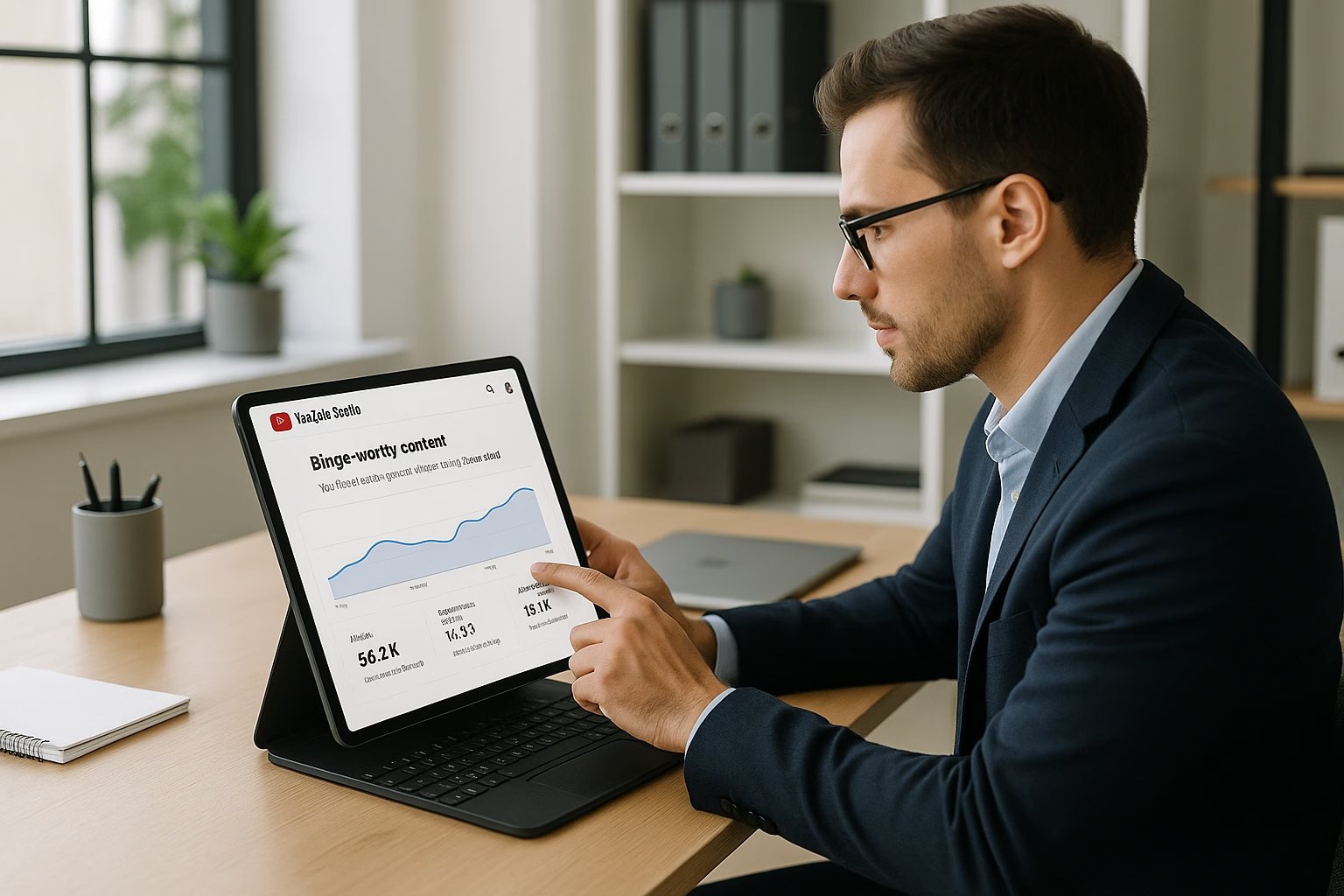
Binge Watch Sessions - youtube studio settings chrome proven
Optimize YouTube Studio settings to increase session watch time by aligning playlists, end screens, chapters, upload defaults, thumbnails, and audience retention tactics. Quick, repeatable changes in YouTube Studio (including Chrome shortcuts) can boost sequential viewing and watch time across a creator’s channel in days, not months.
Quick Fundamentals for Binge Watch Sessions
For creators aged 16-40, binge sessions come from smart sequencing and consistent viewing cues. Use Playlists to guide viewers next, End Screens to promote the right videos, Chapters to keep attention, and Upload Defaults to save time. These basics work whether you use youtube studio settings chrome on desktop or the mobile app.
How do I change upload defaults to promote binge watching?
Set upload defaults in YouTube Studio to include playlist links, CTA text, and consistent tags. Use a title template that adds series identifiers (e.g., "S1 - Ep 3"). This reduces repetitive work and ensures every upload funnels viewers into your playlists and next-video suggestions.
Why are my end screens not appearing or youtube studio settings not working?
If end screens fail, check video length (must be >25 seconds) and current visibility settings. Clear browser cache or try youtube studio settings chrome. Also ensure you have no strikes and that your video’s processing finished; re-save the end screen after confirming.
Can I edit playlists and end screens from my phone using youtube studio settings on phone?
Yes, YouTube Studio mobile supports playlist edits and basic end-screen adjustments, but the desktop (Chrome) interface offers faster precise placement. For quick sequencing changes and checks, the phone app is handy between uploads or while filming on the go.
How do permissions affect workflow for binge session setup?
Use YouTube Studio permissions to add an Editor who can manage playlists, end screens, and upload defaults without sharing full account access. This keeps your workflow consistent and lets a teammate optimize sequencing while you create content.
What keywords should I include in settings to increase discoverability?
Add series-level keywords in upload defaults and channel tags, but avoid keyword stuffing. Use a few focused keywords in descriptions and playlist titles so YouTube can group related videos and suggest them sequentially, improving session starts and watch time.
PrimeTime Advantage for Beginner Creators
PrimeTime Media is an AI optimization service that revives old YouTube videos and pre-optimizes new uploads. It continuously monitors your entire library and auto-tests titles, descriptions, and packaging to maximize RPM and subscriber conversion. Unlike legacy toolbars and keyword gadgets (e.g., TubeBuddy, vidIQ, Social Blade style dashboards), PrimeTime acts directly on outcomes-revenue and subs-using live performance signals.
- Continuous monitoring detects decays early and revives them with tested title/thumbnail/description updates.
- Revenue-share model (50/50 on incremental lift) eliminates upfront risk and aligns incentives.
- Optimization focuses on decision-stage intent and retention-not raw keyword stuffing-so RPM and subs rise together.
👉 Maximize Revenue from Your Existing Content Library. Learn more about optimization services: primetime.media
Why these settings matter
- Playlists and sequencing increase session duration by linking related content.
- End screens and cards nudge viewers to the next video, improving session watch time.
- Chapters reduce early exits by making long videos scannable and more satisfying.
- Upload defaults and thumbnail templates keep your branding consistent and faster to publish.
Step-by-step Tactical Checklist (7-10 Steps)
- Step 1: Open YouTube Studio in Chrome for desktop or the Studio app on phone and go to Settings to confirm your Channel defaults for title templates and visibility.
- Step 2: Create themed playlists in the Library that follow a natural learning or entertainment order-short → medium → long-and pin the best next video at the top.
- Step 3: Add consistent End Screens to the final 5-20 seconds of your videos that promote a playlist and a specific “next” video choice to steer binge watching.
- Step 4: Use Chapters: add 3-6 clear chapter markers in your description for long content so viewers can jump to highlights without leaving the session.
- Step 5: Set Upload Defaults under youtube studio settings channel so descriptions include playlist links, a CTA to watch another video, and consistent tags or keywords.
- Step 6: Use thumbnail templates so viewers recognize your brand in feeds and suggested lists-this reduces scroll friction and increases click-through into the next video.
- Step 7: Check Analytics > Engagement to identify drop-off timestamps. Make small edits (trim intro, add a hook at 10-20 seconds) to protect retention spikes.
- Step 8: Use Cards to highlight related videos during moments of high attention-place them near peaks in retention rather than randomly.
- Step 9: Manage permissions in YouTube Studio to allow a trusted editor to maintain playlist sequencing and end screens so your channel stays consistent when busy.
- Step 10: Test changes using A/B style experimentation: change one variable (thumbnail, playlist order, end screen) and compare the next 7-14 days of session watch time metrics.
Settings to Check Right Now
- Upload Defaults: Title template, description links to playlist, standard tags.
- Playlist Order: Manual ordering vs. date-choose what intelligently funnels viewers.
- End Screens: Promote both a specific video and a playlist for options.
- Video Chapters: 00:00 Intro, 00:30 Hook, etc., for clarity.
- Permissions: Grant Editor role to a teammate if you need help managing sequencing.
Examples and Mini Use Cases
Example 1: A DIY channel adds a “Beginner Projects” playlist and sets each new upload’s end screen to link to the playlist-session watch time rose as viewers moved through the series.
Example 2: A gaming creator used chapters to mark key highlights. Viewers used chapters to replay exciting moments, lifting average view duration and generating more recommended plays.
Tools and Shortcuts
- Chrome extensions for thumbnail templates and quick access to YouTube Studio (use carefully; follow YouTube policies).
- YouTube Studio mobile app for quick playlist edits on-the-go-search youtube studio settings on phone for mobile options.
- Analytics reports in Studio: Engagement > Top playlists by watch time to prioritize sequencing.
PrimeTime Media Advantage
PrimeTime Media helps creators implement these settings with done-for-you templates and checklist workflows so you can focus on content. If you want step-by-step setup, PrimeTime Media offers channel audits and playlist sequencing help that save creators time and improve binge metrics. Ready to streamline your Studio settings? Visit PrimeTime Media and request a channel audit to start increasing session watch time.
Learn more about initial setup and best practices in YouTube Studio with the PrimeTime Media guide: YouTube Studio Setup Basics Using Channel Setup.
Resources and Further Reading
- YouTube Creator Academy - Official lessons on audience retention and upload defaults.
- YouTube Help Center - Policies and step-by-step Studio documentation.
- Think with Google - Research on user behavior and session-based viewing trends.
- Hootsuite Blog - Tips on social distribution and repurposing to boost session starts.
For related tactical reads from PrimeTime Media, see Beginner's Guide to comment optimization and Master Dental YouTube Videos: Beginner Growth Guide.
Beginner FAQs
🎯 Key Takeaways
- Master Optimize YouTube Studio Settings - Quick Tactics for Binge W basics for Binge
- Avoid common mistakes
- Build strong foundation